
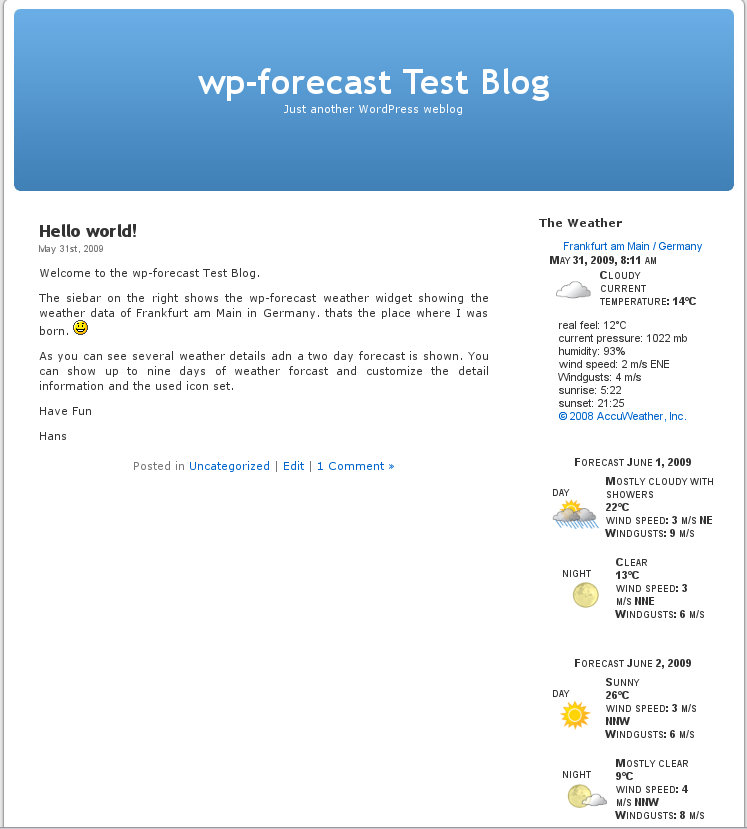
wp-forecast as a widget with two day forecast
You are reading the readme.txt file for the wp-forecast plugin.
wp-forecast is a plugin for the famous wordpress blogging package,
showing the weather-data from open-meteo.com and/or openweathermap.com.
please also refer to the terms of usage of open-meteo.com and/or openweathermap.com.
Features:
- Displays the weather data from Open-Meteo.com and OpenWeatherMap.com
at your wordpress pages, posts or sidebar - Displays OpenUV.io data
- Let you choose the
- location (of course)
- the time after the weather data is refreshed
- the langugage
- metric or american measures
- windspeed unit
- the forecast days
- the forecast for up to six/seven days
- support wordpress widgets, easy placement 🙂
- customize the information you want to show
- supports pull-down forecast data to efficiently use space
- multiple wp-forecast widget support
- integration into your site via css (see below)
- comes with an api for wordpress-pro’s 😉
Credits:
- Barbary Jany testing a lot and bring it to valid XHTML
- Nike Gilhuijs,
Frans Lieshout, Wim Scholtes translation to dutch - Luís Reis translation to portugues
- Håkan Carlström,
Susanne Svensso translation to swedish - Gabriele von der Ohe translation to german with entities (for iso-8859-1 or latin1 blogs)
- Martin Loyer/Jean-Pierre translation to french
- Robert Lang language file for en_US
- Detti Giulio/Stefano Boeri translation to italian
- Eilif Nordseth translation to norwegian
- Michael S.R. Petersen translation to dansk
- Jaakko Kangosjärvi translation to finish
- Lukasz “linshi” Linhard translation to polish
- Castmir & Alejandro translation to spanish
- Tamas Koos translation to hungarian
- Valeria Pellegrini translation to russian
- Valentina Boeri translation to romanian
- Roland Geci translation to slovak
- Pavel Soukenik translation to czech
- Pavel Karnaukhov translation to ukraine
- Zoran Maric translation to serbian (latin)
- Petar Petrov translation to bulgarian
- Udi Burg translation to hebrew
- Uli Kozok translation to indonesian
- Ali Zemani translation to persian
- Amizda Idriz translation to bosnian
- Lovrenco Vladislavić translation to croatian
- All the others giving feedback about missing features and bugs.
Thank you very much for your contribution to wp-forecast. -
Weather Icon Font by me Erik FLowers Weather Icons licensed under SIL OFL 1.1
Installation:
-
Install via the WordPress plugin admin dialog (search for wp-forecast) or
-
Upload to your plugins folder, usually
wp-content/plugins/, keeping
the directory structure intact (i.e. wp-forecast.php should end up
inwp-content/plugins/wp-forecast/). -
Activate the plugin on the plugin screen.
-
Visit the configuration page (
Options -> WP-forecast) to pick the
number of widgets, data to display and to change any other option. -
Visit the Themes/Widgets page to place your wp-forecast widget within
your themes sidebars or insert it manually and edit your template
file and put the wp-forecast function where you want your weather
data to show up.
Example:
wp_forecast();
} ?>
You have to replace
with the choosen widget id.
For the first widget use wp_forecast(“A”), for the second
wp_forecast(“B”) and so on.
In most cases it is advisable to put the call into a div environment. -
Optional
If you would like to have another set of icons download it
from http://accunet.accuweather.com/wx/accunet/graphics_icons.htm
and put it into the wp-content/plugins/wp-forecast/icons folder -
Optional
If you would like to change the style, just edit wp-forecast.css
there are three classes div.wp-forecast for outer formatting,
table.wp-forecast for the middle part or iconpart and
wp-forecast-details for everything below the icon
Translations
wp-forecast comes with various translations, located in the directory lang.
if you would like to add a new translation, just take the file
wp-forecast.pot (in the wp-forecast main directory) copy it to
wp-forecast_-.po and edit it to add your translations
(e.g. with poedit).
Please be aware that the number codes stand for the weather-situations.
you can see the mapping in wp-forecast-en_US-en_US.po. there are also
the letters N, S, W, E they stand for the winddirections and can be
translates either.
To use your own translation, a different one as the default just rename the
appropriate file wp-forecast_-.po and
wp-forecast_-.mo
To add your translations online at the Translate WordPress project please visit
https://translate.wordpress.org/projects/wp-plugins/wp-forecast. This should be the prefered
way from now on.