The Simple Shopping Cart plugin enables you to effortlessly add ‘Add to Cart’ buttons for your products or services directly on your website. This lightweight plugin transforms your WordPress site into a fully functional e-commerce platform, allowing you to sell products and services with ease.
With this plugin, your customers have the convenience of paying for their selected items using popular payment gateways such as PayPal and/or Stripe.
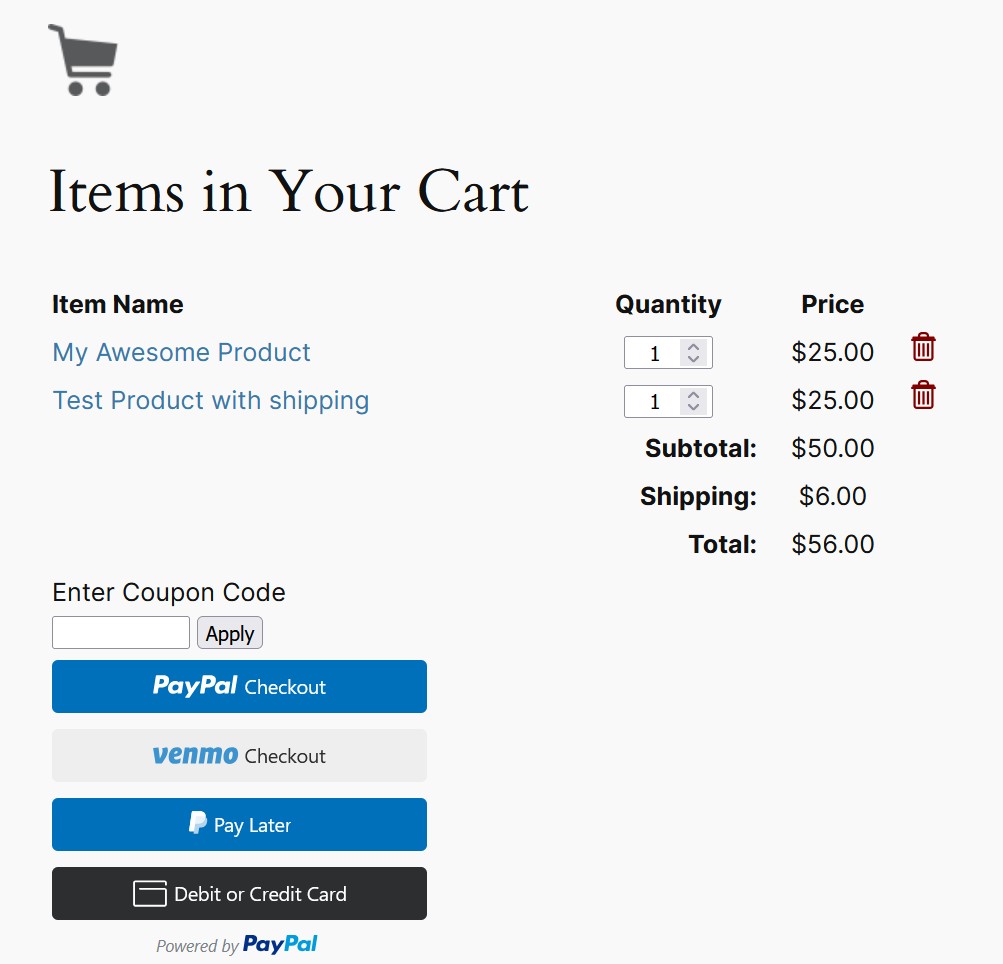
You can easily display the shopping cart on any post, page, or sidebar. The cart provides users with a clear view of their selected items, allowing them to adjust quantities or remove items effortlessly.
The plugin offers the newest/latest PayPal Commerce Platform (PPCP) checkout option. You can enable it in the settings menu of the plugin.
Checkout Process Demonstration
It offers a simple and seamless checkout process for your customers. To see a demonstration of how the checkout process works, please refer to the following video:
Easily Create Products
You will be able to create products by using shortcodes dynamically.
If you have a responsive theme, the shopping cart’s output will adapt seamlessly to ensure a mobile-friendly shopping experience.
Furthermore, this plugin provides a simple solution for selling digital products. To see a demonstration of how you can effectively sell your digital media files using the simple cart plugin, please refer to the following video:
Engineered for a Lightweight Solution
Designed as a lightweight solution with minimal lines of code and a streamlined set of options, this plugin ensures optimal site performance. Moreover, it is designed to be a low maintenance solution, minimizing the likelihood of frequent site disruptions caused by upgrades. With this plugin, you can enjoy a stable and hassle-free shopping cart functionality while maintaining the overall stability of your website.
Simple Shopping Cart Plugin, interfaces with the PayPal sandbox and Stripe testmode to allow for testing.
Documentation
For documentation, video tutorials, screenshots, support, and updates, please visit:
Simple Shopping Cart Documentation
or
Simple Shopping Cart Details Page
Features
- Easily create “add to cart” button with options if needed (price, shipping, options variations). The cart’s shortcode can be displayed on posts or pages.
- Use a function to add dynamic “add to cart” button directly in your theme.
- Minimal number of configuration items to keep the plugin lightweight.
- Sell any kind of tangible products from your site.
- Ability to sell services from your your site.
- Sell any type of media file that you upload to your WordPress site. For example: you can sell ebooks (PDF), music files (MP3), audio files, videos, photos, images etc.
- Your customers will automatically get an email with the media file that they paid for.
- Show a nicely formatted product display box on the fly using a simple shortcode.
- Option to enable terms and conditions for your customers to agree to before they checkout.
- Uses the newest/latest PayPal checkout option.
- Option to use the PayPal Commerce Platform Checkout option. You can enable it from the settings menu of the plugin.
- Option to use the smart payment buttons of PayPal. Allows the customers to checkout in a popup window (using a credit card, paypal or paypal credit).
- Your customers will be able to use the PayPal’ Pay in 4 payment option (Buy Now Pay Later).
- You can use PayPal sandbox to do testing if needed (before you go live).
- Ability to offer the Stripe checkout option. Your customers can conveniently make credit card payments through the secure Stripe payment gateway.
- You can use Stripe testmode to do testing if needed (before going live).
- The Stripe checkout will display payment method options based on what you, as the merchant, have enabled in your Stripe account.
- You can offer a manual/offline payment option using the Manual Checkout feature.
- Ability to display the order summary on the ‘Thank You’ page. Refer to this documentation for more details.
- The orders menu will show you all the orders that you have received from your site.
- Ability to configure an email that will get sent to your buyers after they purchase your product.
- Ability to configure a sale notification email that gets sent to the site admin when a customer purchase your item(s).
- Ability to configure discount coupons. Offer special discounts on your store/shop.
- You can create coupons and give to your customers. When they use coupons during the checkout they will receive a discount.
- Create discount coupons with an expiry date. The coupon code automatically expires after the date you set.
- Compatible with WordPress Multi-site Installation.
- Ability to specify SKU (item number) for each of your products in the shortcode.
- Ability to customize the add to cart button image and use a custom image for your purchase buttons.
- Ability to customize the add to cart button text via shortcode parameter on a per product basis.
- Track coupons with the order to see which customer used which coupon code.
- Ability to add a compact shopping cart to your site using a shortcode.
- Ability to show shopping cart with product image thumbnails.
- Ability to use a custom checkout page style.
- Ability to configure region based shipping additions.
- Ability to use blocks to add the ‘add to cart’ button and the ‘shopping cart’ to your posts/pages/sidebar.
- Option to enable AJAX add to cart buttons for a smoother user experience.
- Option to hide the quantity field in the shopping cart. This can be useful for a site selling only digital products where the quantity is always 1.
- Works nicely with responsive WordPress themes.
- Can be translated into any language.
- and more…
Shopping Cart Setup Video Tutorials
There is a series of video tutorials to show you how to set up the shopping cart plugin on your site.
Check the video tutorials here.
Language Translations
The following language translations are already available:
- English
- German
- Spanish
- French
- Breton
- Italian
- Japanese
- Polish
- Czech
- Hebrew
- Swedish
- Norwegian
- Danish
- Turkish
- Dutch
- Brazilian Portuguese
You can translate the plugin using this documentation.
Developers
- If you are a developer and you need some extra hooks or filters for this plugin please let us know.
- Github repository
Usage
1) To add an ‘Add to Cart’ button for a product, simply add the following shortcode to a post or page next to the product. Replace PRODUCT-NAME and PRODUCT-PRICE with the actual name and price.
[wp_cart_button name="PRODUCT-NAME" price="PRODUCT-PRICE"]
2) To add the shopping cart to a post or page (eg. checkout page) add the following shortcode to a post or page or use the sidebar widget to add the shopping cart to the sidebar. The shopping cart will only be visible in a post or page when a customer adds a product.
[show_wp_shopping_cart]
3) Alternatively, you have the option to utilize the Gutenberg editor blocks provided by this plugin to conveniently insert the add to cart button and shopping cart in desired locations within your content.
Read the documentation for using the blocks
4) To insert the ‘Add to Cart’ button from a template or PHP file, you can utilize the following PHP function:
Replace PRODUCT-NAME and PRODUCT-PRICE with the actual name and price.
Using Product Display Box
Here is an exmaple shortcode that shows you how to use a product display box.
[wp_cart_display_product name="My Awesome Product" price="25.00" thumbnail="http://www.example.com/images/product-image.jpg" description="This is a short description of the product"]
Simply replace the values with your product specific data
Using a compact shopping cart
Add the following shortcode where you want to show the compact shopping cart:
[wp_compact_cart]
Using Shipping
To apply a shipping cost to your product, use the ‘shipping’ parameter. Below is an example of how to include it in a shortcode:
[wp_cart_button name="Test Product" price="19.95" shipping="4.99"]
Visit the shipping setup documentation page for more details.
Using Variation Control (Product Variations)
To enable variation control, use the variation parameter. Below is an example of how to include it in a shortcode:
[wp_cart_button name="Test Product" price="25.95" var1="VARIATION-NAME|VARIATION1|VARIATION2|VARIATION3"]
Example shortcode usage:
[wp_cart_button name="Test Product" price="29.95" var1="Size|small|medium|large"]
To add multiple variations to a product (such as a second or third variation), use the following format:
[wp_cart_button name="Test Product" price="29.95" var1="Size|small|medium|large" var2="Color|red|green|blue"]
To add variations with price modifiers to a product (so the selected variation can update the price), use the following format:
[wp_cart_button name="Test Product" price="15.00" var1="Size|small|medium::5|large::10" var2="Color|red|green::2|blue::3" var3="Sleeve|short|full::5"]


