Smart Auto Upload Images – Import External Images
by Burhan Nasir on WordPress.org
Import external images automatically on save. Adds to media library and updates URLs. No manual downloads. Works with any post type.
Smart Auto Upload Images automatically imports external images from your post content into your WordPress media library. When you save or update a post, the plugin detects any external image URLs, downloads them to your server, and replaces the original URLs with your hosted versions. This improves site performance, ensures image availability, and gives you complete control over your content.
Why Auto Upload Images to Your Media Library?
When you copy content from external sources or use remote images, you risk broken images when the original source removes them. Hosting images on your own server provides several benefits:
- Better SEO performance – Search engines favor self-hosted images
- Faster page load times – Eliminates external HTTP requests
- Full content control – Images remain available even if sources go offline
How Auto Upload Images Works
The plugin runs automatically whenever you save or update a post. Here’s the process:
- Scans post content for external image URLs (any image not hosted on your domain)
- Downloads each external image to a temporary location
- Validates image file integrity and format
- Uploads valid images to your WordPress media library
- Replaces original external URLs with new local URLs
- Attaches imported images to your post in the media library
No manual intervention required. Just write your content and let the plugin handle the rest.
Key Features
Automatic External Image Detection
The plugin automatically identifies external images in your post content when you save. It distinguishes between local images (already hosted on your site) and external images that need importing.
Smart URL Replacement
After importing images, the plugin intelligently replaces all instances of the external URL with your new local URL. This works with images in:
- Post content (Classic Editor and Gutenberg blocks)
- Image galleries
- Featured images
Media Library Integration
All imported images are added to your WordPress media library with proper metadata. You can:
- Edit images using WordPress image editor
- View which post each image is attached to
- Set custom alt text during import
- Apply your site’s image optimization settings
Flexible Domain Exclusions
Exclude specific domains from auto-import. Useful for:
- CDN-hosted images you want to keep external
- Partner websites where you have permission to hotlink
- Your own secondary domains
- Social media embeds you want to keep as external
Custom Post Type Control
Choose which post types trigger auto-upload. Enable for:
- Posts and pages (default)
- WooCommerce products
- Custom portfolio post types
- Documentation posts
- Or disable for specific types you want to skip
Advanced File Naming Patterns
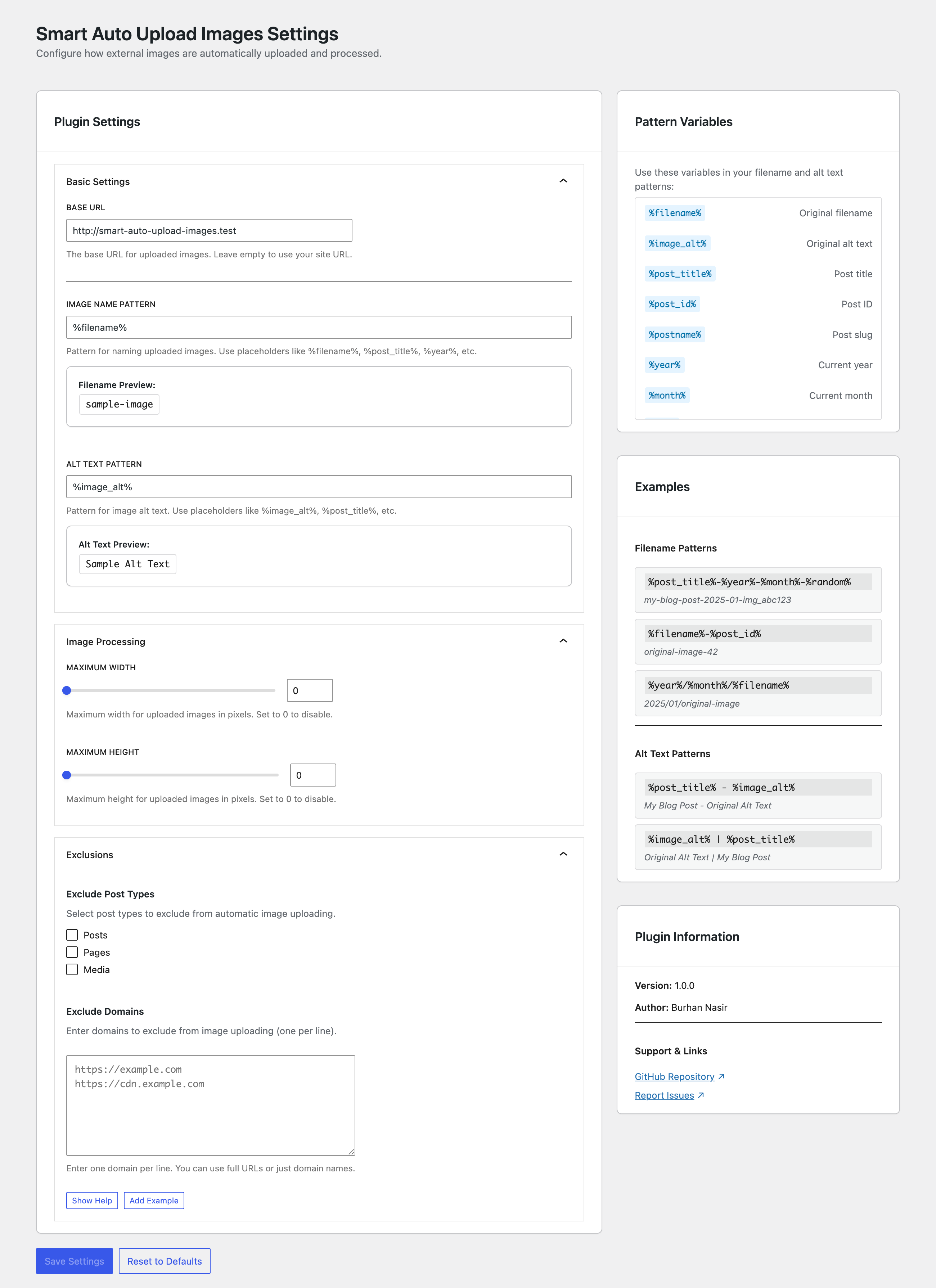
Set custom file naming patterns for imported images using dynamic tags:
%filename%– Original filename%post_title%– Current post title%post_id%– Post ID%image_title%– Image title attribute%date%– Current date%time%– Current timestamp
Example: %post_title%-%filename% becomes my-blog-post-example-image.jpg
Custom Alt Text Patterns
Define alt text patterns for better SEO:
%post_title%– Use post title in alt text%filename%– Use filename as alt text- Custom text – Set consistent alt text across imports
Image Size Constraints
Set maximum width and height for imported images to:
- Control storage usage
- Maintain consistent image sizes
- Automatically resize oversized images
- Prevent huge images from slowing your site
Featured Image from URL
Set a post’s featured image using an external URL. The plugin will:
- Download the image from the URL
- Import it to your media library
- Set it as the post’s featured image
- Work via REST API or post editor
How to Import External Images from Posts
- Install and activate Auto Upload Images
- Go to Settings Auto Upload Images
- Configure your preferences (or use defaults)
- Create or edit any post with external images
- Click Save or Update – images import automatically
- Check your Media Library to see imported images
How to Exclude Specific Domains
If you want to prevent images from certain domains from being imported:
- Go to Settings Auto Upload Images
- Find the “Excluded Domains” section
- Enter domains one per line (e.g., cdn.example.com)
- Save settings
- Images from excluded domains will be left as external URLs
How to Set Custom File Names for Imported Images
- Navigate to Settings Auto Upload Images
- Find “File Name Pattern” setting
- Enter your pattern using available tags:
- Example:
%post_title%-%filename% - Example:
imported-%date%-%filename%
- Example:
- Save settings
- New imports will use your naming pattern
This helps organize your media library and improves SEO with descriptive file names.
How to Set Featured Image via URL
Using the Post Editor:
- Edit your post
- Find the Featured Image section in the sidebar
- Enter the external image URL in the “Set from URL” field
- The image imports automatically and sets as featured image
Integration with Page Builders
Auto Upload Images works with popular page builders:
Gutenberg Block Editor
All images in Gutenberg blocks are automatically detected and imported when you save the post.
Classic Editor
External images in Classic Editor content are imported on post save.
WooCommerce
Enable auto-import for Product post type to automatically import external product images.
Custom Post Types
Configure any custom post type to trigger auto-import functionality.
Just ensure Auto Upload Images is active when running imports.
Performance and Storage Considerations
Server Storage
Imported images consume server storage. Monitor your hosting plan’s disk space if importing large quantities of images.
Import Speed
Import time depends on:
* Image file sizes
* Your server’s download speed
* Number of images per post
* Configured maximum dimensions
Optimization Tips
- Set maximum width/height to reduce storage
- Use an image optimization plugin after import
- Exclude domains hosting very large images
- Test with small batches before bulk imports
Developer Features
Filter: smart_aui_validate_image_url
Programmatically control which image URLs get imported.
`
add_filter( ‘smart_aui_validate_image_url’, function( $is_valid, $url ) {
// Skip images from specific paths
if ( strpos( $url, ‘/cdn/avatars/’ ) !== false ) {
return false;
}
return $is_valid;
}, 10, 2 );
`
Additional Hooks
Check plugin documentation for additional filters and actions to customize behavior.
Troubleshooting
Images Not Importing
Problem: External images remain unchanged after saving post
Solutions:
* Check if domain is in excluded domains list
* Verify your server can make external HTTP requests
* Check WordPress debug log for errors
* Ensure PHP has necessary image processing libraries
* Verify write permissions on uploads directory
Import Errors in Debug Log
Problem: Seeing errors in wp-content/debug.log
Solutions:
* Check image URL is publicly accessible
* Verify image format is supported (JPG, PNG, GIF, WebP)
* Ensure external server allows download/hotlinking
* Check SSL certificate validity if using HTTPS images
Images Upload but URLs Not Replaced
Problem: Images added to media library but old URLs remain
Solutions:
* Clear any caching plugins
* Check post content in Text/HTML mode
* Verify images aren’t in excluded domain list
* Review file naming pattern doesn’t cause conflicts
Duplicate Images in Media Library
Problem: Same image imported multiple times
Solutions:
* Plugin should detect and reuse existing images (v1.2.0+)
* Check if images have different URLs but same file
* Clear media library of duplicates and re-save post
Featured Image Not Setting from URL
Problem: Featured image URL not importing
Solutions:
* Verify URL is publicly accessible
* Check image format is supported
* Ensure PHP memory limit is sufficient
* Review error logs for specific error messages
Maximum Width/Height Not Applied
Problem: Images exceed configured dimensions
Solutions:
* Ensure GD or ImageMagick is installed on server
* Check PHP memory limit allows image processing
* Verify dimensions are set in plugin settings
* Test with smaller images first


