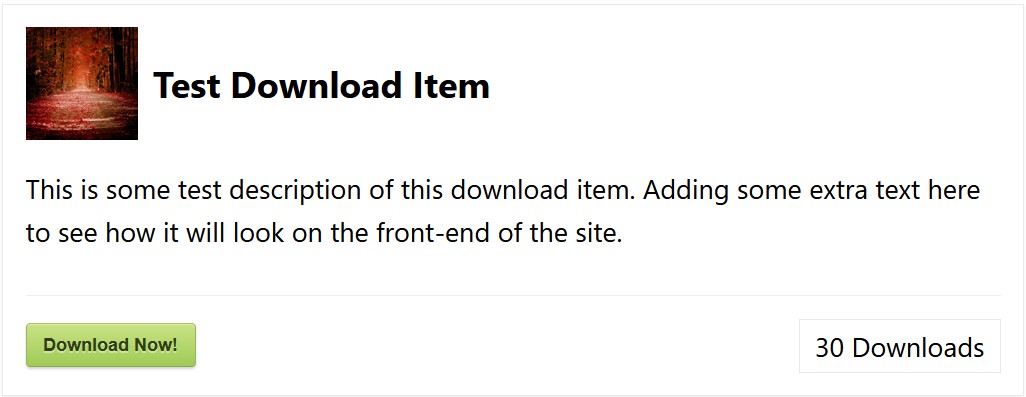
The download item display shortcode in action with the fancy 1 template.
I developed the Simple Download Monitor plugin because I needed a nice way to manage my digital downloads and monitor the number of downloads of my files and documents.
This plugin is very useful for managing and tracking your digital file download counts.
You can password protect your downloadable files and documents too (visitors will require a password before downloading the file when you use this option).
You can configure downloadable files from your WordPress admin dashboard via an elegant user interface. Then allow your visitors to download the files and this plugin will monitor which files get downloaded how many times.
The plugin will log the IP addresses of the users who download your digital files and documents. It will also log the date and time of each download.
It has a very user-friendly interface for uploading, managing, monitoring and tracking file downloads.
Simple Download Monitor Features
- Add, edit and remove downloads from an easy to use interface.
- Drag and drop file and document uploads.
- Assign categories and tags to your downloadable files and documents.
- Rich text editor for editing your download item description.
- Use shortcodes to display a download now button on a WordPress post or page.
- Show trackable download now buttons for your files anywhere on your site.
- Shortcode to create a direct download link for a file. Useful for hotlinking.
- Download counter for each file.
- Ability to set a download count offset for each file.
- Track IP addresses of the users who downloaded your files.
- Track date and time of each file downloads.
- Track the usernames of the users downloading the files.
- Track the User Agent of the visitors downloading the files.
- Track the Referrer URL to see which page the downloads are coming from.
- Option to setup secure downloads for your files (the URL of the downloadable file will be hidden).
- Option to upload a thumbnail image for each of your downloadable files.
- Option to use a nice looking template to show your download now buttons.
- Ability to search and sort your downloadable files in the admin dashboard.
- Ability to create a search page and allow your visitors to search your downloads.
- Track the number of downloads for each of your files.
- Track the visitors country.
- View the daily download counts of your items in a chart.
- WordPress Shortcode for embedding a download link for a file.
- Tinymce button in the WordPress post/page editor so you can easily add the shortcode.
- You can customize the “Download Now” button text of an item to anything you want.
- Ability to add the download now buttons to your sidebar widget.
- Create password protected download now buttons. Users will only be able to download the file if they enter the correct password. View the tutorial
- Option to add additional security to your downloadable files with the Enhanced File Protection Feature.
- Shortcode to show the download counter of a file. Use it to show off your file download count.
- Shortcode to show all the downloads from a particular category.
- Shortcode to embed a file tree browser for your downloadable files. The file browser is ajax based and it shows the files structured by categories.
- Ability to open the downloads in new browser window or tab. When your users click on a download button, it will open in a new window or tab.
- Ability to show your downloads in a grid display. View the tutorial
- Export all the file download logs to a CSV file.
- Ability to reset the log entries.
- Ability to trim the download log entries.
- Shortcode to show a number of latest downloads to your visitors.
- Shortcode to show a number of popular downloads to your visitors.
- Ability to disable the download monitoring (logging) for certain items (or all items).
- You can also choose to only monitor downloads from unique IP address only.
- Option to specify file size info so it can be shown to your visitors. View the tutorial
- Option to specify version number info for the download item so it can be shown to your visitors.
- Option to show the download published date.
- Option to restrict downloads to logged-in users only. View the tutorial
- There is an option to show an ajax file tree browser so your visitors can browse all your files and download the ones they want.
- Option to ignore download count from bots.
- Option to add Google reCAPTCHA to your download buttons.
- Option to add Cloudflare Turnstile CAPTCHA to your download buttons.
- Option to add Terms and Conditions to your download buttons.
- Ability to easily clone/copy your existing download items.
- Ability to insert Adsense or other Ad code inside the download item display.
- Gutenberg block to insert download now buttons on a post or page.
- Option to override the default template by placing a custom template file in the active theme’s directory.
- The stats menu can show you the top downloads, downloads by date, country, browser etc.
View more details on the download monitor plugin page.
Language Translations
The following language translations are already available for the download monitor plugin:
- English
- German
- Spanish
- French
- Italian
- Russian
- Dutch
- Portuguese (Brasil)
- Hebrew
Simple Download Monitor Plugin Usage
Once you have installed the plugin, go to “Downloads -> Settings” interface to configure some options
A) Configure Download Monitor basic settings
- Admin Options: Remove Tinymce Button – Removes the SDM Downloads button from the WP content editor (default: unchecked).
- Color Options: Download Button Color – Select a default color of the download button (default: green).
B) Add a new download
To configure a new download follow these steps:
- Go to “Downloads->Add New” interface in your WP admin
- Enter a title for your download
- Add a description for the download
- Select the file from your computer and upload it (or use an URL of the file)
- Select an image for the download (it will be displayed as a thumbnail on the front end)
- Publish it
You can view all of your existing downloads from the “Downloads->Downloads” interface.
C) Create a download button
Create a new post/page and click the “SDM Downlaods” TinyMCE button to insert a shortcode (This button will only show up if you haven’t unchecked it in the settings). You can choose to display your download with a nice looking box or just a plain download link/button.
Example Shortcode Usage:
[sdm_download id="271" fancy="1"]  (embed a download button inside a box with other information e.g. Thumbnail, Title and Description)

[sdm_download id="271" fancy="0"]  (embed a plain download button/link for a file)

[sdm_download id="271" fancy="0" color="blue"]  (embed a plain download button/link for a file with a blue color)
D) Download logs
You can check the download stats from the “Downloads->Logs” interface. It shows the number of downloads for each files, IP address of the user who downloaded it, date and time of the download.
3rd Party or External Libraries/Services
The plugin uses the Google Charts library to show the download count charts in the admin interface (if you use the stats menu of the plugin). You can see more details about this library at the following URL:
https://developers.google.com/chart/
Detailed Usage Documentation
View more usage instructions on the Download Monitor Plugin page.
Github Repository
https://github.com/Arsenal21/simple-download-monitor
If you need extra action hooks or filters for this plugin then let us know.