
Music Store – WordPress eCommerce
by codepeople on WordPress.org
Music Store, online store for selling audio files (Ex. music, speeches, narratives), that supports PayPal, Stripe, Square, and other payment gateways.
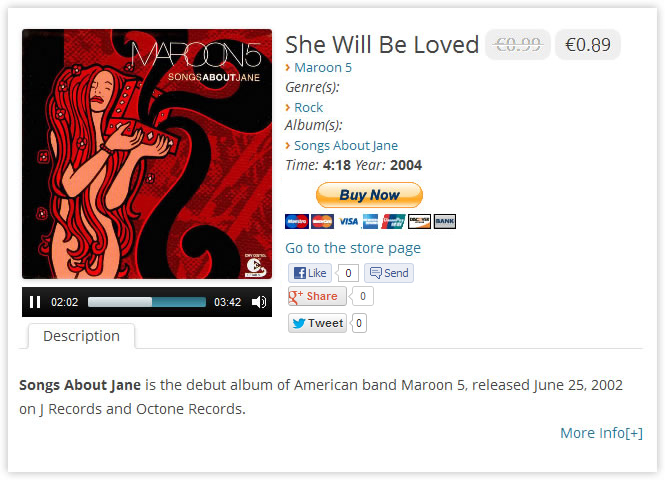
Music Store Item
Music Store – WordPress ecommerce features:
♪ Allows selling audio files via PayPal, Square Up, iDeal – Mollie. Payments are SCA ready (Strong Customer Authentication), compatible with the new Payment services (PSD 2) – Directive (EU)
♪ Allows selling the Music Store products via WooCommerce cart (Experimental feature)
♪ Allows a custom setup of the online store
♪ Includes an audio player that supports formats: OGA, MP3, WAV, WMA
♪ Includes multiple layouts for the Music Store
♪ Allows sharing songs in social networks (ex: Facebook and X)
♪ Supports all most popular web browsers and mobile devices
♪ Includes a module to track sales statistics
Music Store – WordPress ecommerce is an online store for selling audio files (music, speeches, narratives, everything audio), that alternatively allows selling its products via WooCommerce.
Music Store – WordPress ecommerce protects your audio files, preventing them from being downloaded without permission.
The audio player in the Music Store supports all major browsers in desktop and mobiles devices, and the MP3, WAV, WMA and OGA audio formats.
More about the Main Features:
- Integrates PayPal, Stripe, Square Up, and iDeal – Mollie payment gateways.
- Enables embedding shop, product, product lists, or sales counters on preferred website pages with customizable display options.
- Audio player supports OGA, MP3, WAV, WMA formats.
- Facilitates product sharing on social networks like Facebook and X.
- Enables license definition.
- Compatible with all modern desktop and mobile browsers.
- Features a sales reports module for comprehensive analytics.
The “Music Store” plugin integrates with:
- Classic WordPress Editor
- Gutenberg Editor
- Elementor
- Page Builder by SiteOrigin
- BeaverBuilder Editor
For other editors, use general-purpose controls like HTML or shortcode inserters for shortcodes.
The base plugin, available for free from the WordPress Plugin Directory has all the features you need to create a WordPress ecommerce on your website.
Premium Features
- Sell collections & albums
- Includes a shopping cart for selling multiple products at once
- Secure Audio Playback
- Filter products by file types
- Sell products exclusively with licenses
- Create & apply discounts, coupons
- Import multiple audio files with ID3 tag extraction
- Integrate with WebHooks, Salesforce
- Generate & send dynamic coupons for promotions
Demo of Premium Version of Plugin
http://demos.dwbooster.com/music-store/wp-login.php
http://demos.dwbooster.com/music-store/
Are the download links secure?
Access to song files in the WordPress store is safeguarded:
- Files are stored in a protected directory, accessible only through server-side validation.
- The Music Store plugin validates download links based on purchase date, download limit, and email verification.
- Settings allow defining link validity period, download limits, and email verification for secure access to purchased songs.
If you want more information about this plugin or another one, don’t doubt to visit the website:
http://musicstore.dwbooster.com
Installing and using the free version of the Music Store – WordPress ecommerce
Installing and using the premium version of the Music Store – WordPress ecommerce
Inserting a product, and product list, on a web page and sidebars. Premium version of plugin.
Buying in the Music Store – WordPress ecommerce.
Interface
Setting up Music Store
Music Store – WordPress ecommerce can be set up via the menu: “Settings / Music Store” or the new submenu “Music Store / Store Settings”. The setup screen offers general settings for the Music Store, allows to enter PayPal data to process sales (The plugin includes the integration with other payment gateways like Square Up, iDeal – Mollie, and Stripe), and texts necessary for email notifications.
Settings Interface
The setup interface offers:
- Integration with WooCommerce: Sell products via WooCommerce cart.
- Music Store URL: Define the store’s webpage URL for seamless navigation.
- Filter options: Filter products by type, genre, artist, or album.
- Pagination: Enable multiple pages for music store products.
- Friendly URLs: Use user-friendly URLs for product pages.
- Layout selection: Choose from various store layouts.
- Items per page: Set the number of products displayed per page.
- Player customization: Select audio player style.
- Secure playback settings: Control protected playback percentage and explanatory text.
- Social sharing: Include social sharing buttons for songs and collections.
Payment Gateway Settings
- Enable PayPal Payments to facilitate product sales through PayPal. You can enter PayPal email, currency, and PayPal interface language by default.
- Payment Button: Choose the design for payment buttons.
- Use Shopping Cart: Activate a shopping cart for consolidated purchases.
- Hide Download Link for Blank Prices: Conceal download links for songs with blank prices.
- Enhance Download Page Security: Verify the email used for product purchase on the download page.
- Bundle Purchased Files: Download all files as a single ZIP file for convenience.
- Restrict Access to Registered Users: Display “Buy Now” buttons and download links for registered users only.
- Licenses: Enter URLs for licenses related to free, regular, and exclusive purchases.
Discount Settings (Advanced Version)
- Display Promotions: Showcase discount offers on the music store page.
- Discount Percentage: Set the percentage discount on the selling price.
- Minimum Sales Requirement: Specify the condition for discount application.
- Validity Period: Define the start and end dates for the discount rules.
- Promotional Text: Add promotional text to promote the discounts effectively.
Coupon Settings (Advanced Version)
- Discount Percentage: Set the discount percentage for the selling price.
- Coupon Code: Enter a valid coupon code for discounts.
- Validity Period: Specify the start and end dates for coupon validity.
From the version v5.0.74, was included an add-on to allow generate coupons dynamically with every purchase, and send them to the buyers to promote new purchases.
Coupons Generator Add-On (Advanced Version)
- Activate the Coupons Generator: Enable the coupon generator feature.
- Discount Percentage: Set the discount percentage for generated coupons.
- Coupon Code Length: Define the number of characters in the coupon codes.
- Validity Period: Specify the number of days the coupons are valid.
- Promotional Message: Add a promotional message to notification emails with coupon details.
Notification Settings for Buyers and Store Managers
- Sender Email Address: Email displayed as the sender of notifications.
- Notification Email Address: Email where notifications are sent after each sale.
- User Confirmation Email Subject: Subject line for customer purchase confirmation email.
- User Confirmation Email Body: Message sent to the client upon purchase, with %INFORMATION% tag replaced by purchase data.
- Admin Notification Email Subject: Subject line for administrator notification on purchase.
- Admin Notification Email Body: Message sent to the administrator on purchase, with %INFORMATION% tag replaced by purchase data.
Affiliate Royale Integration, if the Affiliate Royale plugin is installed on the website, and you want integrate it with the Music Store.
Square add-on
Allows integrating the store with Square Up payment gateway. More details: https://musicstore.dwbooster.com/add-ons/square
iDeal – Mollie add-on
Allows integrating the store with iDeal – Mollie. More details: https://musicstore.dwbooster.com/add-ons/ideal-mollie
Stripe add-on
Allows integrating the store with Stripe. Requires the installation of the free plugin: Music Store – Stripe Add On
WebHook Connector add-on (Available in the Professional version of the plugin)
The WebHook Connector add-on allows the integration with WebHooks for using services like: Zapier, IFTTT, Microsoft Flow, all of them are connectors for hundred of other services.
The add-on is accessible from the store’s settings. Simply, enter the URL to the WebHook, and create the connection between the names of fields in the WebHook, and the information that the website should send.
Salesforce Connector add-on (Available in the Professional version of the plugin)
The Salesforce Connector add-on allows to create new leads in Salesforce with the buyers data.
The add-on is accessible from the store’s settings. Simply, create the relationship between the Salesforce attributes and the information in the website.
Note: Salesforce requires at least the users emails to create the leads.
Creating content
Two types of products can be sold through the Music Store – WordPress ecommerce: songs or collections.
Creating songs
- Click on “Music Store Song” in the menu to add a new song.
- Fill in the following details for the song:
- Title: Enter the song title.
- Description: Optional information about the song.
- Sales Price: Price of the song.
- Exclusive Price: Price for exclusive sales.
- Single Sale: Check to sell the song individually.
- Audio File for Sale: URL of the audio file.
- Audio File for Demo: URL of the demo audio file.
- Protect File: Secure playback to prevent downloading (Professional plugin version).
- Artist: Choose the artist(s) or add a new one.
- Album: Select the album(s) where the song is included or add a new one.
- Cover: URL of the cover image.
- Duration: Song length.
- Publication Year: Year of release.
- Additional Information: URL for more details about the song.
- To set discounts:
- New Price: Discounted price.
- Valid from: Start date of the discount.
- Valid to: End date of the discount.
- Promotional Text: Text to promote the discount.
- On the right side, you can specify the song’s genre.
Creating collections
- Click on “Music Store Collection” in the menu to access the collection section.
- Click “Add New” to create a new collection.
- Collection setup interface:
- Title: Enter the collection title.
- Description: Optional description of the collection.
- Sales Price: Price of the collection.
- Exclusive Price: Price for exclusive sales (removes collection from store).
- Songs in Collection: Choose songs to include in the collection. Songs must be public and defined in the songs section.
- Artist: Select the artist(s) for the collection or add a new one.
- Cover: URL of the cover image.
- Publication Year: Year of release for the collection.
- Additional Information: URL for more details about the collection.
- To set discounts:
- New Price: Discounted price.
- Valid from: Start date of the discount.
- Valid to: End date of the discount.
- Promotional Text: Text to promote the discount.
- On the right side, you can specify the genre of the collection.
Publishing the Music Store – WordPress ecommerce
To add the Music Store to a page or post on your WordPress site, follow these steps:
- Navigate to the page or post where you want to display the Music Store, or create a new page/post.
- Insert the Music Store block
Interface for inserting the Music Store in WordPress ecommerce:
- Filter results by product type: By default, shows products of a specific type.
- Columns: Set the number of columns for displaying store products.
- Filter results by genre: Filter products by genre.
- Filter results by artist: Filter products by artist.
- Filter results by album: Filter products by album.
The insertion process will generate a shortcode that will be replaced by the Music Store when it is viewed on the website.
To add the Music Store to a post or page, use the shortcode [music_store column="3"]. If you prefer to insert the Music Store directly into the template, use the following PHP code:
Interface for insertion dialog of product list in a page or post (the interface is available as a widget for inserting the products list in the website’s sidebars)
- Select the type of products list (top rated products, the newest products, or the top selling).
- Enter the number of products to display on list.
- Enter the number of columns(if the products list is inserted in a website’s sidebar, it is recommended to use only one column).
The insertion process generates a shortcode which will be replaced by the products list when page is displayed on the website.
The shortcode in a post or page has the structure:
[music_store_product_list columns="1" number="3" type="top_rated"]
If prefer to insert the product directly in template:
Interface for insertion dialog of sales counter in a page or post (the interface is available as a widget for inserting the counter in the website’s sidebars)
- Select the numbers design.
- Enter the minimum length of counter number.
The insertion process generates a shortcode which will be replaced by the counter when page is displayed on the website.
The shortcode in a post or page has the structure:
[music_store_sales_counter min_length="3" style="alt_digits"]
If prefer to insert the product directly in template:
Purchased Products List
The [music_store_purchased_list] shortcode is replaced by the list of products purchased by the logged user.
Sale Statistics
When a sale occurs, the Music Store administrator receives a notification email. Additionally, sales can be managed and reviewed in the Sales Reports section. To access this feature, follow these steps:
Navigate to the store’s setup page by going to “Music Store / Sales Report” menu option (refer to screenshot-9).
In the Reports section, you can:
- Filter sales reports for a specific period (defaults to the current day).
- View total sales for the selected period and the currency used for the sales (refer to screenshot-10).
- Generate charts with graphical data on sales, such as sales by country, currency, and products.
You can also:
- Delete a sales report from the list, useful for refunds to buyers and keeping sales statistics accurate.
- Replace all purchases associated with an email address with another email address.
Additionally, you have the option to manually enter sales entries, enabling website owners to update sales reports even for products sold through other channels.
Translations
The Music Store – WordPress ecommerce uses the English language by default, but includes the following language packages:
- Spanish
- French
- German
- Dutch
Note: The languages packages are generated dynamically. If detects an error in the translation, please, contact us to correct it.


