
Create Block Theme
by WordPress.org on WordPress.org
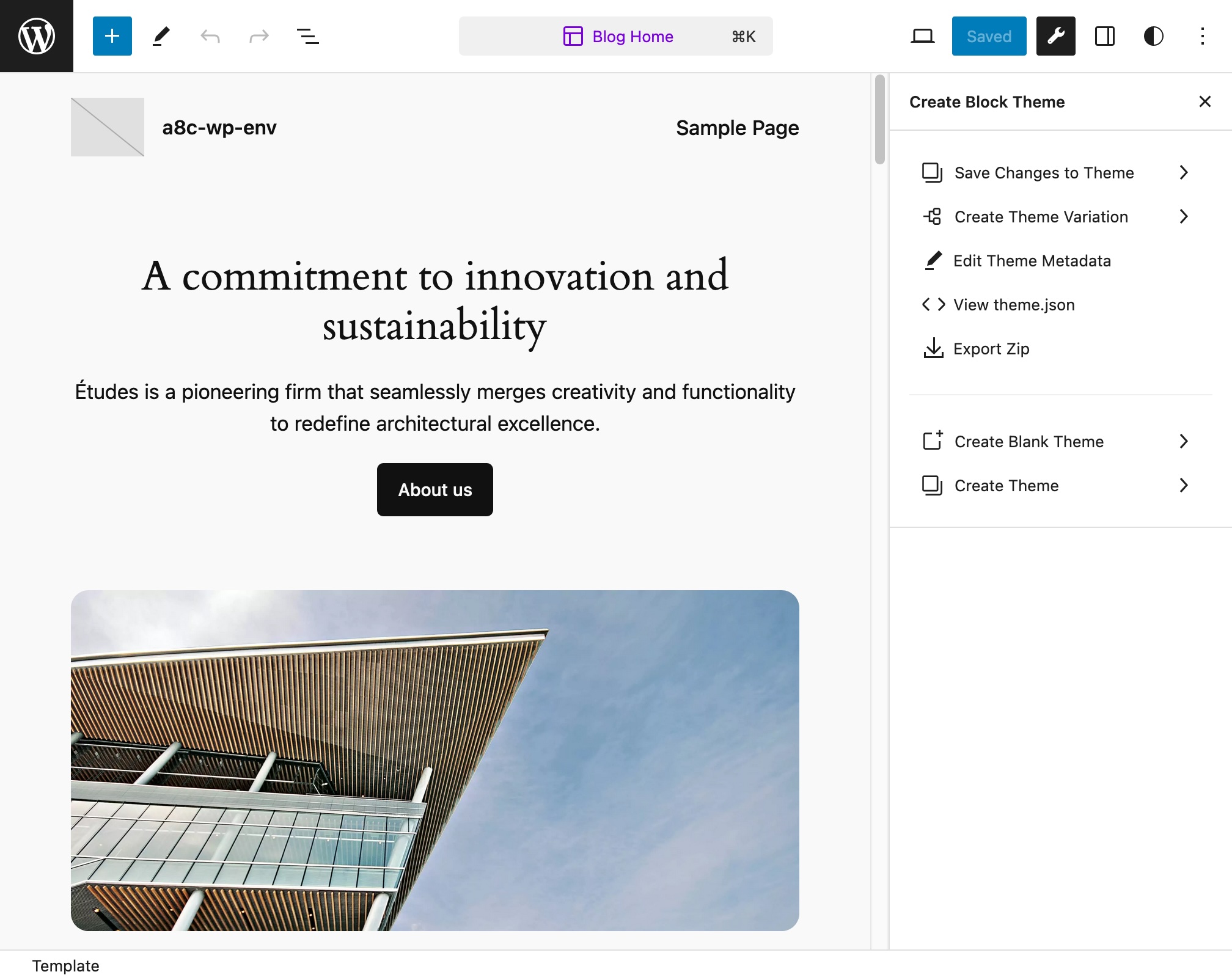
Create Block Theme panel in the WordPress Editor
This plugin allows you to:
- Create a blank theme
- Create a new theme based on the currently active theme
- Create a child theme of the active parent theme
- Create a new style variation
- Export a theme
- Save user changed templates and styles to the active theme
All newly created themes or style variations will include changes made within the WordPress Editor.
This plugin also makes several changes to the contents of a theme, including:
- Adds all images used in templates to the theme’s
assetsfolder. - Ensures the block markup used in templates and patterns is export-ready.
- Ensures most strings used in templates and patterns are translate-ready.
Disclaimer: The Create Block Theme plugin offers critical developer-friendly features; you can think of it as a Development Mode for WordPress, and you should keep in mind that changes made through this plugin could change your site and/or theme permanently.
(Make sure you know what you’re doing before hitting that ‘Save’ button 😉)
Step 1 – Setup
Install and activate the Create Block Theme plugin.
There will be a new panel accessible from the WordPress Editor, which you can open by clicking on a new icon to the right of the “Save” button, at the top of the Editor.
Step 2 – Style Customizations
Make changes to your site styles, fonts and templates using the Editor.
Step 3 – Export
Still in the WordPress Editor, navigate to the Create Block Theme menu at the top of the Editor.
To save recent changes made in the Editor to the currently active theme:
- Select “Save Changes” to save any recent changes to the currently active theme.
To install and uninstall fonts:
- Install and activate a font from any source using the WordPress Font Library.
- Select “Save Changes To Theme” and select “Save Fonts” to save all of the active fonts to the currently active theme. These fonts will then be activated in the theme and deactivated in the system (and may be safely deleted from the system).
- Any fonts that are installed in the theme that have been deactivated with the WordPress Font Library will be removed from the theme.
or export the theme:
- Select “Export Zip” to export the theme as a zip file.
To edit the theme metadata:
- Select “Edit Theme Metadata” to edit the metadata for the theme. These details will be used in the style.css file.
To inspect the active theme’s theme.json contents:
- Select “Inspect Theme JSON”
To create a new blank theme:
- Select “Create Blank Theme”
- Supply a name for the new theme (and optional additional Metadata)
- Click “Create Blank Theme”
To create a variation:
- Select “Create Theme Variation”
- Provide a name for the new Variation
- Click “Create Theme Variation”
To create a new Clone of the current theme or to create a Child of the current theme:
- Click “Create Theme”
- Click “Clone Theme” to create a new Theme based on the active theme with your changes
- Click “Create Child Theme” to create a new Child Theme with the active theme as a parent with your changes
Many of these options are also available under the older, deprecated Create Block Theme page under Appearance > Create Block Theme.
General Troubleshooting
If you are having problems, please try the following:
- Make sure you have the latest version of WordPress installed.
- Make sure you have the latest version of the plugin installed.
- Deactivate all plugins and see if this resolves the problem. If this works, re-activate the plugins one by one until you find the problematic plugin(s).
- Switch the theme to the default theme to rule out any theme-related problems.
- Check the Support forum for similar issues.
I’m getting a corrupt zip file when I export my theme
- First follow the general troubleshooting steps above.
- Please make sure you
WP_DEBUGsetting in yourwp-config.phpfile is set tofalselike this:define( 'WP_DEBUG', false );. - If your theme includes PHP files, ensure those files do not use PHP closing tags
?>at the end of the file. If they do, remove them.