
GSheetConnector for CF7 – Connect Contact Form 7 to Google Sheets and Send Form Submissions in Real Time
by WesternDeal on WordPress.org
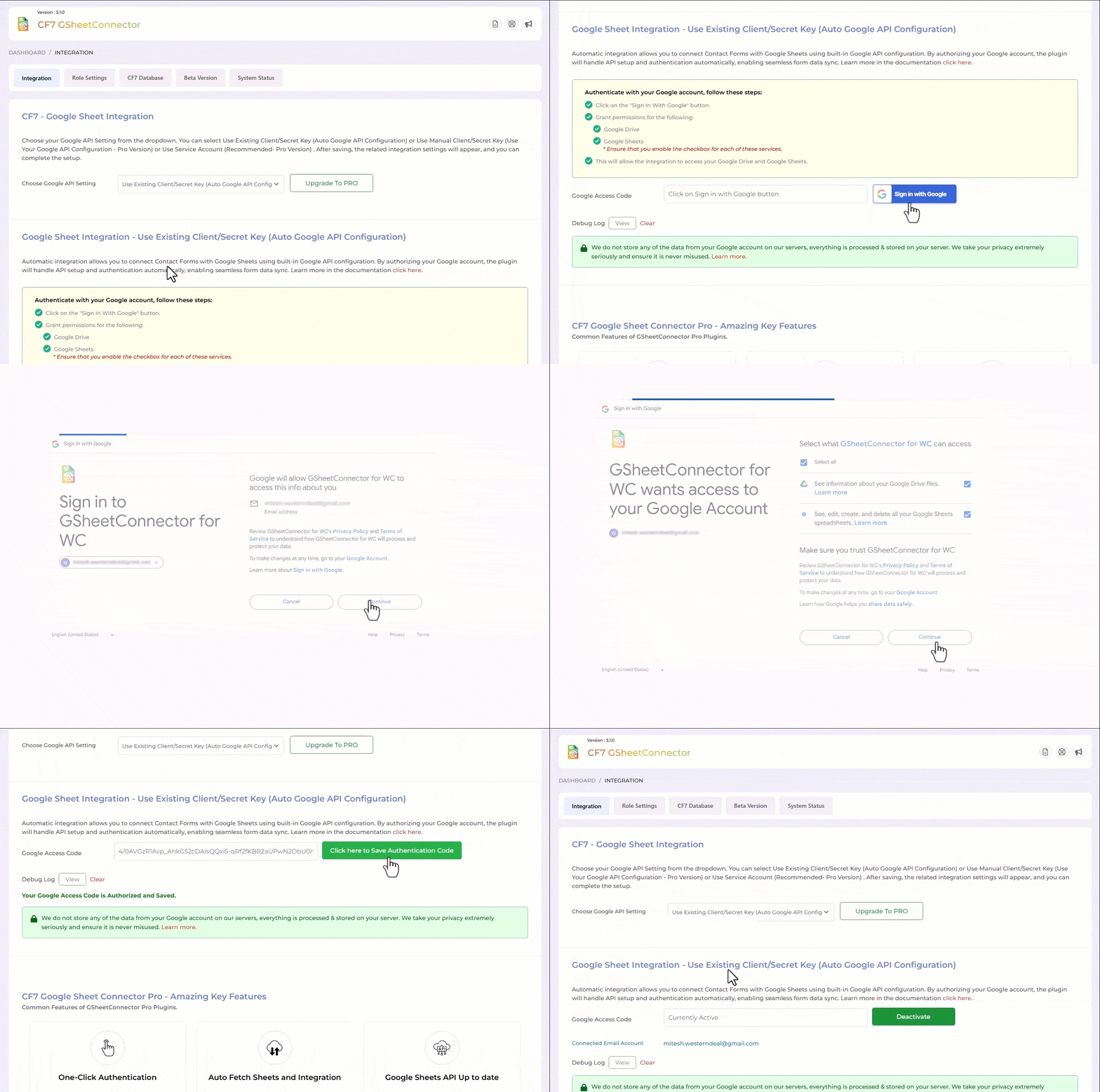
Google Sheet Integration Shown with Authentication along with Permissions.
GSheetConnector for CF7
🚀 A Most Popular WordPress Plugin.
★★★★★
Google Sheets Connector for CF7 is an addon plugin, A bridge between your WordPress based Contact Form 7 forms and Google Sheets.
When a visitor submits his/her data on your website via a Contact Form 7 form, upon form submission, such data are also sent to Google Sheets.
Homepage | Documentation | Support | Demo | Premium Version
= 📝 CF7 ➜ ✍️Google Sheet=
Get rid of making mistakes while adding the sheet settings or adding the headers ( Mail Tags ) to the sheet column. We have Launched the Googlesheet Connector PRO version with more automated features.
✔ PRO Features
➜ Custom Google API Integration Settings
➜ Allowing to Create a New Sheet from Plugin Settings
➜ Custom Ordering Feature / Manage Fields to Display in Sheet using Enable-Disable / Edit the Fields/ Headers Name to display in Google Sheet.
➜ Using all the Special Mail Tags Fields in Headers
➜ Syncronize Existing Entries for WPForms PRO users
➜ Freeze Header Settings
➜ Header Color and Row Odd/Even Colors.
Refer to the features and benefits page for more detailed information on the features and free vs pro of the CF7 Google Sheet Connector PRO Addon Plugin
⚡️ Check Live Demo
Demo URL: Google Sheets Connector for CF7
Google Sheet URL to Check submitted Data
⚡️ How to Use this Plugin
-
Step: 1 – In Google Sheets
➜ Log into your Google Account and visit Google Sheets.
➜ Create a new Sheet and name it.
➜ Rename or keep default name of the tab on which you want to capture the data.
➜ Copy Sheet Name, Sheet ID, Tab Name and Tab ID (Refer Screenshots) -
Step: 2 – In WordPress Admin
➜ Create or Edit the Contact Form 7 form from which you want to capture the data. Set up the form as usual in the Form and Mail etc tabs. Thereafter, go to the new “Google Sheets” tab.
➜ On the “Google Sheets” tab, copy-paste the Google Sheets sheet name and tab name into respective positions, and hit “Save”. -
Step: 3 – Arranging Columns in Sheet
➜ In the Google sheets tab, provide column names in row 1. The first column should be “date”. For each further column, copy paste mail tags from the Contact Form 7 form (e.g. “your-name”, “your-email”, “your-subject”, “your-message”, etc).
➜ Test your form submit and verify that the data shows up in your Google Sheet.
🔥 Videos to help you get started with Google Sheets Connector for CF7
🚀How to Install, Authenticate and Integrate Contact Form with your Google Sheet.
Important Notes
➜ You must pay very careful attention to your naming. This plugin will have unpredictable results if names and spellings do not match between your Google Sheets and form settings.