
Data Source for Contact Form 7
by codepeople on WordPress.org
The Data Source for Contact Form 7 plugin populates fields with data from external sources like databases, CSVs, URL parameters, ACF, and others.
Data Source Controls
Data Source for Contact Form 7 plugin allows populating the “Contact Form 7” fields (text, email, URL, drop-down menu, …) with data stored in external data sources, like a database, CSV file, URL parameters, users information, post data, taxonomies, Advanced Custom Fields (ACF) – Secured Custom Fields, and JSON objects.
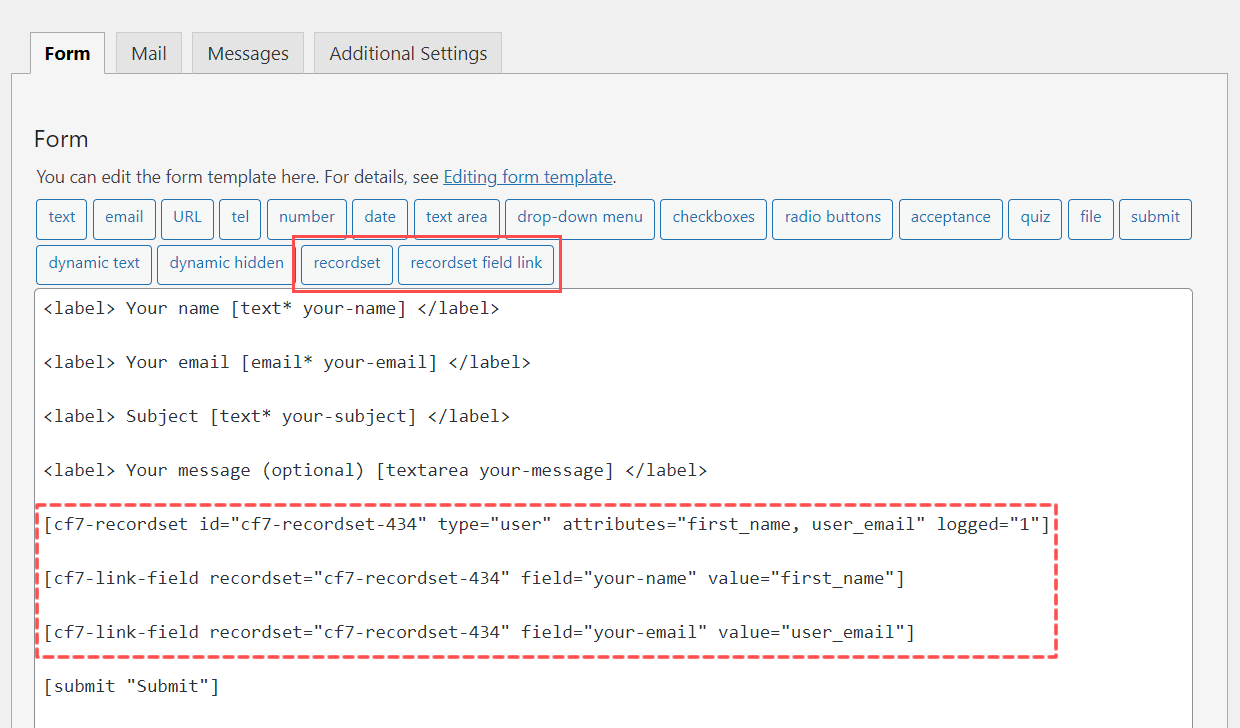
Data Source for Contact Form 7 includes two new controls in the controls bar of Contact Form 7, recordset and recordset field link. The “recordset” control reads the information from the external data source (a database, a CSV file, or any other data source supported), and the “recordset field link” control for linking the recordsets and form fields to populate them with the recordset data.
A form can include several “recordset” fields, and it is possible to link multiple “recordset field link” controls to the same recordset.
The new SQL-Generator module. It generates the database queries in a more conversational style. Just describe the information needed, and get the DB query without any prior database knowledge.
How to create the simplest contact form from our practical examples.
The plugin includes other complementary controls in the controls bar in addition to the “recordset” and “recordset field link”. The “Print Form” button for printing the form area, “Data Table” control for inserting an advanced table with the recordset records, “copy to clipboard” functionality for copying the values of the fields into the clipboard, and the “Search box in dropdown menu” functionality to make easy the selection in long dropdown menus.
Features:
- Set the information of external data sources available for the Contact Form 7 fields.
- Easy to use, includes two new controls in the controls bar to define the recordsets and the link fields.
- Includes the “URL Parameters” data source to populate the form’s fields with the values of the URL parameters.
- Includes the “Users Information” data source to populate the form’s fields with the users’ information.
- Includes the “Posts Information” data source to populate the form’s fields with the posts’ data, pages, and custom post types (like the WooCommerce products).
- Includes the “Taxonomy” data source to populate the form’s fields with taxonomy terms, like categories, posts tags, or any other custom taxonomy.
- Includes the “Database” data source to populate the form’s fields with the information of a database. Allow defining even complex queries.
- SQL Generator module. It generates the database queries in a more conversational style.
- Includes the “Javascript Function” data source to populate the form’s fields with the information returned from a Javascript function.
- Allows using the fields’ values for filtering the recordset records.
- Complementary Controls add-on. Includes additional controls and functionalities, such as the “Print Form” button, the addition of the search box to the drop-down menu, copy to clipboard functionality, and Data Table to display the data source records.
Features in Premium version:
- All features of the free version of the plugin.
- Includes the “Advanced Custom Fields (ACF) – Secured Custom Fields” data source to fill the form filds with data stored in the Advanced Custom Fields or Secured Custom Fields in post, users, comments, taxonomies, widgets, and options.
- Includes the “CSV” data source to populate the form’s fields with the data store into a CSV file.
- Includes the “JSON” data source to populate the form’s fields with the data store into a JSON file. There are hundreds of services whose outputs are JSON objects.
- PDF Generator add-on. It generates PDF files with the information collected by the form and attaches them to the notification emails (Supports the “Conditional Fields for Contact Form 7” plugin tags in the PDF file content if the “Conditional Fields for Contact Form 7” plugin is installed on the website).
- Post Generator add-on. It generates new posts (posts, pages, or any custom post) with the information collected by the form.
- User Registration add-on to convert contact forms into user registration forms.
- CSV Generator add-on to populate a CSV file with the information collected by the form.
- JSON Generator add-on to populate a JSON file with the information collected by the form.
- Server Side add-on to implement server side functions to call from the Recordset controls and get the list of records.
Data Source Fields
Data Source for Contact Form 7 includes two new controls in the controls bar of Contact Form 7, recordset and recordset field link.
The recordset control reads the information from the external data source and makes it available on the form. A recordset field can read one or many records from the data source.
To insert a recordset field in the form, press the “recordset” button in the controls bar. This action opens a dialog to define the recordset.
The insertion dialog includes common attributes for all data sources and specific attributes for the data source selected.
The “recordset field link” control links a recordset field to other fields in the form to populate them with the recordset data.
To insert a link field in the form, press the “recordset field link” button in the controls bar. This action opens a dialog to define the relationship between a recordset and a form’s field.
The link dialog includes the attributes to define the relationship between the recordset field and the form’s fields.
Cases of Use
Get the information of the registered user and populate the form fields for his name and email:
[cf7-recordset id="cf7-recordset-434" type="user" attributes="first_name, user_email" logged="1"]
[cf7-link-field recordset="cf7-recordset-434" field="your-name" value="first_name"]
[cf7-link-field recordset="cf7-recordset-434" field="your-email" value="user_email"]
[submit "Submit"]
Filling a plain text in the form with the first name and last name of the logged user:
[cf7-recordset id="cf7-recordset-434" type="user" attributes="first_name, last_name" logged="1"]
[cf7-link-field recordset="cf7-recordset-434" field="first-name" value="first_name"]
[cf7-link-field recordset="cf7-recordset-434" field="last-name" value="last_name"]
[submit "Submit"]
Populates the list of WooCommerce products and get the price of the selected one:
[cf7-recordset id="cf7-recordset-619" type="database" engine="mysql" query="SELECT ID,post_title,meta_value as price FROM {wpdb.posts} posts, {wpdb.postmeta} meta WHERE posts.post_type='product' AND posts.ID=meta.post_id AND meta.meta_key='_regular_price'"]
[cf7-link-field recordset="cf7-recordset-619" field="menu-719" value="ID" text="post_title"]
[cf7-link-field recordset="cf7-recordset-619" field="number-534" value="price" condition="record['ID']=={field.menu-719}"]
[submit "Submit"]
Using templates to create complex data structures. Displaying the title and excerpt of every published post:
{attribute.post_title}
{attribute.post_excerpt}


[cf7-recordset id="cf7-posts" type="post" attributes="post_title,post_excerpt" condition="post_status='publish' AND post_type='post'"]

[cf7-link-field recordset="cf7-posts" field="posts-list" value="{template.summary}"]
The form includes a template tag to design a complex data structure. To access the records attributes from the template, use {attribute.attribute-name} format. Ex. {attribute.post_title}
You can use the templates for the fields’ values or texts. The format for referring to templates is {template.template-id}. You should replace “template-id” with the id of the template tag. Ex. {template.summary}
[cf7-link-field recordset="cf7-posts" field="posts-list" value="{template.summary}"]
Using Javascript to Access the Recordset Data
The recordset fields trigger the “cf7-recordset” event after receiving the information from the data source, allowing you to access this information with Javascript. In this example, the recordset field reads motivational phrases from a third-party service and displays the first of them into a DIV tag on the form.


