Admin Bar Editor – Toolbar Customization with User Role based access & Custom menus
by Liton Arefin on WordPress.org
Take full control of your WordPress admin bar: hide items, reorder menus, and design a cleaner toolbar for every user.
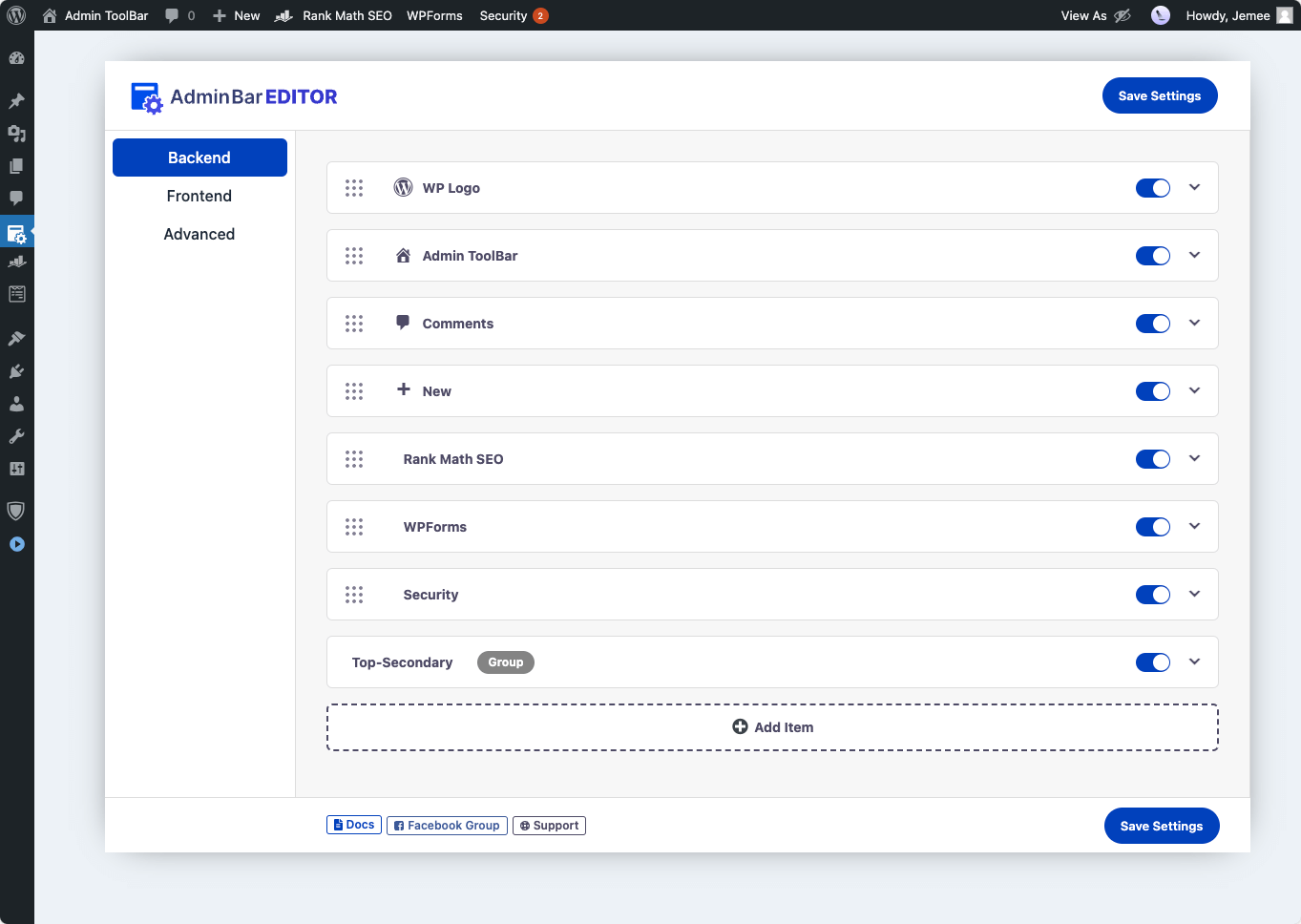
Admin Bar Editor options for WordPress Dashboard
Admin Bar Editor lets you visually customize the WordPress toolbar (admin bar) for both backend and frontend so you can keep what matters and hide what does not.
You can quickly disable the frontend admin bar, turn off specific toolbar items, and reorganize menus with a clean drag-and-drop interface – no code required. This makes the toolbar faster to use for you, your team, and your clients.
Why customize the WordPress admin bar?
The default admin bar often gets cluttered with links from themes, plugins, and WordPress core. This can:
- Distract non-technical users with unnecessary options.
- Slow down power users who need quick access to key tools.
- Look confusing on membership, LMS, or WooCommerce sites where many users log in.
Admin Bar Editor gives you precise control over what appears in the toolbar so each role sees a clean, focused experience.
Admin Bar Editor Pro | Try Live Demo | Documentation
Who is Admin Bar Editor for?
- Site Owners & Bloggers – Hide clutter, keep only the shortcuts you actually use.
- Agencies & Freelancers – Deliver white-labeled, role-based toolbars for client sites.
- Membership, LMS & Community Sites – Simplify the frontend admin bar for members and instructors.
- Product & Support Teams – Create focused dashboards for editors, authors, and support users.
How Admin Bar Editor works
The plugin adds an AdminBar Editor page in your dashboard with three main sections: Backend, Frontend, and Advanced.
- In Backend, you control the admin bar that appears inside wp-admin. You can toggle core items like the WordPress logo, site name, comments, updates, and the “New” menu, and adjust submenu visibility.
- In Frontend, you manage the toolbar shown on the public side of your site, including a global switch to disable the frontend admin bar.
- In Advanced, you can change the admin bar position (top or bottom) and, in Pro, style colors, gradients, and button appearance.
All changes are applied instantly when you save settings and can be adjusted at any time.
Why Admin Bar Editor is different
- Focuses specifically on toolbar usability instead of being a general admin theme.
- Uses a simple, visual layout with toggles and drag-handles so non-technical users can edit the bar safely.
- Built with role-based workflows in mind, so administrators can create different toolbar experiences for different user types (with Pro).
- Designed to be lightweight and compatible with modern WordPress sites, including popular themes and plugins.
Free Features
The free version includes everything you need to clean up and simplify the WordPress admin bar.
Backend toolbar control
- Enable/disable core admin bar items such as:
- WordPress logo menu
- Site name / visit site
- Updates
- Comments
- “New” content menu and its default sub-items (Post, Media, Page, User)
- Toggle each item with an easy on/off switch – no code editing.
- Use drag-and-drop handles to reorder items in the backend admin bar.
- Expand items to manage visibility of built-in submenu entries like Post, Media, Page, and User.
Frontend toolbar control
- Disable or enable the frontend admin bar globally with a single switch.
- Hide or show the toolbar for all logged-in users on the frontend.
- Hide or show the toolbar for all guest (non-logged-in) users where applicable.
- Manage visibility of core frontend admin bar items with switches and drag-and-drop ordering.
Basic admin bar layout
- Move the admin bar position from the top of the screen to the bottom (global option).
- Apply the position change consistently for both backend and frontend views.
Safe defaults and compatibility
- Uses native WordPress toolbar APIs to avoid touching core files.
- Works with any theme and most plugins that add their own admin bar items.
- Stores settings in the database so your configuration persists through updates and re-activations.
Pro Features
Upgrade to Pro when you need finer control over who sees the admin bar, plus advanced styling and custom menus.
Custom admin bar menus (Pro)
- Add new top-level items to the admin bar with custom titles and URLs.
- Add custom submenu items under existing or new menu entries.
- Build role-aware shortcuts to dashboards, docs, tools, or external services for your team or clients.
Role- and user-based toolbar visibility (Pro)
- Disable the frontend admin bar for specific user roles while keeping it visible for others.
- Disable the frontend admin bar for specific usernames when you need per-user control.
- Combine global, role, and user rules to design clean toolbars for each audience.
Advanced styling: background, text, dropdowns, button (Pro)
The Advanced Styles tab unlocks visual customization for the toolbar.
- Set a custom background color for the admin bar.
- Use a gradient background to match your brand.
- Customize text color across the toolbar.
- Style the dropdown appearance for menu groups.
- Change the “New” button style and color for better visual hierarchy.
These options help agencies and brand-focused sites keep the toolbar consistent with their design system.
Upgrade to Admin Bar Editor Pro for advanced role control, custom menus, and full toolbar styling.
🙌 Support
For any questions, get in touch with us via our Contact Page
How It Works
Admin Bar Editor hooks into WordPress’s built-in toolbar system and lets you manage items through an options panel instead of code.
- When you toggle or reorder an item, the plugin records that layout in the database and applies it each time the admin bar is rendered.
- Free users can control existing toolbar items and the global frontend bar, while Pro users unlock custom menu entries, per-role visibility, and advanced styling.
- Deactivating the plugin restores the default WordPress admin bar; reactivating brings back your saved configuration.